 Documentation
 Your AI Team, One Dashboard
CrewHub is an open-source, real-time monitoring dashboard for AI coding agents. Connect Claude Code, OpenClaw, or Codex CLI and watch your agents collaborate in a fully interactive 3D world.
What is CrewHub?
CrewHub gives developers a single place to see, manage, and coordinate all their AI coding agents. Whether you're running one Claude Code session or orchestrating a multi-agent team with specialized roles, CrewHub shows you what every agent is doing — right now.
Beyond monitoring, CrewHub adds a layer of structure and collaboration on top of your agents: organized rooms, structured meetings with real output, a Kanban task board, and a 3D world that makes your AI team feel alive.
Try it first! A live demo is available at demo.crewhub.dev — no installation required.
Who is it for?
CrewHub is built for developers who:
- Use Claude Code and want real-time visibility into session activity
- Run multi-agent workflows with OpenClaw or Codex CLI
- Want to organize agents into logical rooms (Frontend, Backend, Review, etc.)
- Need structured AI meetings that produce action items and tasks
- Want a Kanban board where tasks are executed directly by agents
Key Features
Watch your agents roam a toon-shaded campus in real-time. Room focus, bot close-up, animated movement.
Live session tracking via Server-Sent Events. Cards view with filtering, fullscreen detail panels, activity feed.
Run structured round-robin discussions. Agents build on each other's contributions and produce summaries + action items.
Kanban board with To Do / In Progress / Review / Done columns. Assign tasks to agents and run them directly.
Browse your project docs from inside CrewHub. Folder tree, fullscreen markdown viewer, auto-generated TOC.
Hand off sessions to terminal, VS Code, or copy command to clipboard — with one click.
Compatible Platforms
| Platform | Support | Notes |
|---|---|---|
| Claude Code (Anthropic CLI) | ✅ Full | Chat, prop generation, interactive sessions |
| OpenClaw | ✅ Full | WebSocket gateway, all features |
| Codex CLI (OpenAI) | ✅ Monitoring | Session detection and display |
See it in Action
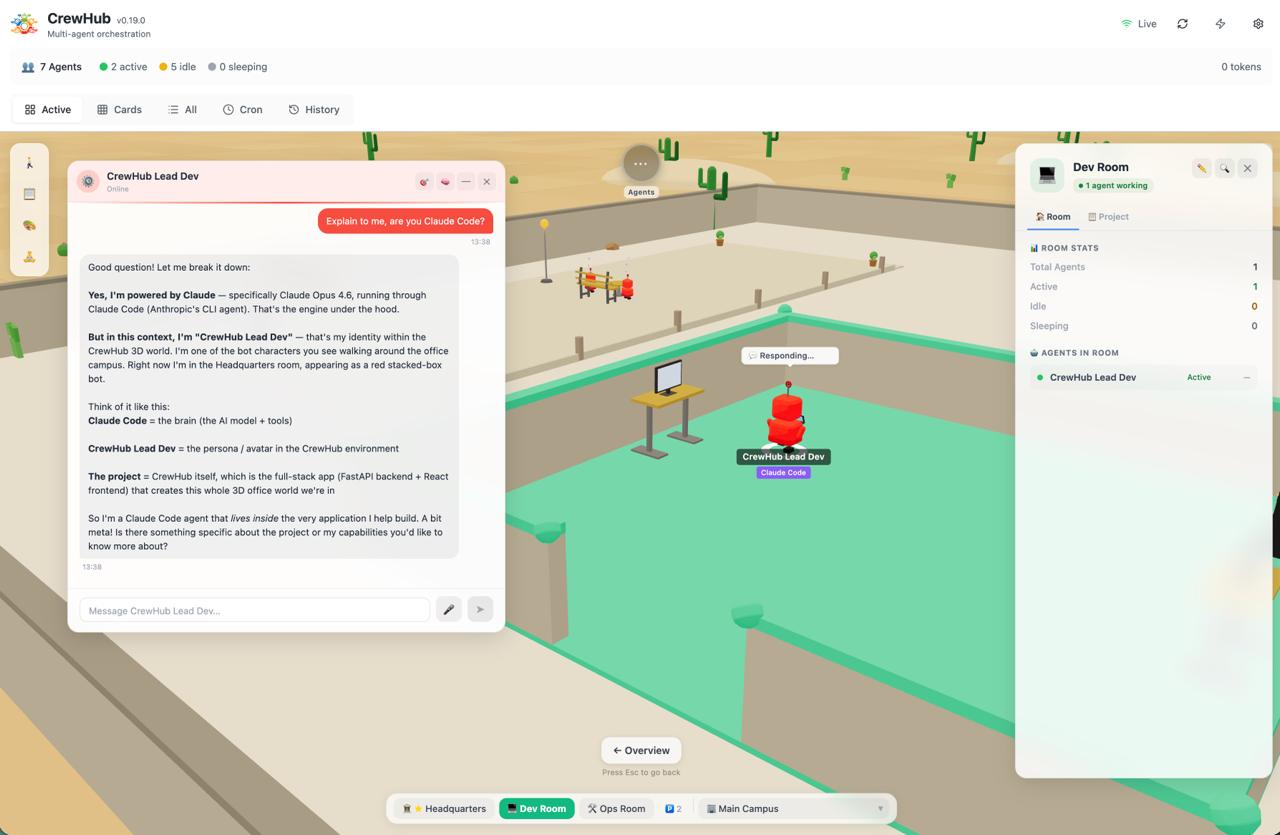
The 3D World view with agent chat panel open
How it Works
CrewHub runs as a local web app (backend + frontend) on your machine. It connects to your agent platforms and streams live updates to the dashboard via Server-Sent Events. No cloud required — everything stays local by default.
- Install CrewHub — clone the repo and run the setup script
- Connect your agents — Claude Code auto-detected, OpenClaw via gateway URL
- Open the dashboard — see all your sessions live at
http://localhost:5181 - Organize — assign agents to rooms, run meetings, create tasks
Follow the Quick Start guide to get CrewHub running in under 5 minutes.